How Do We Update Efofex Products?

Question:

How Do We Update Efofex Products?

Answer:

There are two components to this question: checking for updates and installing updates.

Checking for Updates

Many software packages regularly “phone home” to check for updates. This can either be done by the program itself or by installing a separate “update checker” mini program that runs intermittently. Many computers have dozens of these mini update-checking programs running. Most update-checkers are well behaved but some are resource hogs or just buggy. Most schools do NOT want update-checkers running on their school computers as it can mean hundreds of computers running dozens of programs on a regular basis. This consumes bandwidth and any faults are dramatically amplified.

For this reason, we do NOT use update-checking programs. Our products check for themselves about once per week but only when they are run by the user. This minimises the impacts on systems but it does have a downside; the updates are reported by the program when it is running. If you try to download and install the update at that point of time, it will fail because you cannot update a running program. Just download the update to your computer and install it later, when the program is closed.

Many schools do not want ANY update checking to occur, so we give you the option to turn this behaviour off.
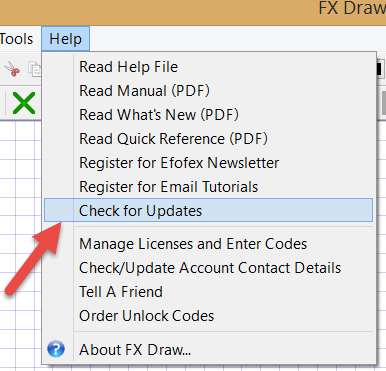
Even when checking for updates, the products do not report every update available. Many of our updates (and we can update products daily at times) address minor issues and inconveniences that affect very few people. As most of our users will not be affected by the changes, there is no point informing users of the change or forcing an update onto them. The programs will NOT report these updates to users. Only significant updates and upgrades are reported.

In summary, compared to most programs you might be using we inform you of updates infrequently and the checking will often be turned off. This is solely due to the environment that we operate in.

Installing Updates

Many software products automatically install updates, usually with your consent. We do NOT do this. Schools have told us loud and clear that they do not want this behaviour. They want to install software and updates on their own schedule. This makes life much simpler for school system administrators but does feel a little unnatural to users who expect software to update itself. While we would like to make it easier for users to keep their software up-to-date, we have decided to heed the demands of our customers and keep the process manual.

To install updates to our products you need to:

  1. Download the new version either because you have been informed of an update or because you have decided to install the latest version.
  2. Install the new version in exactly the same way you installed the initial version – straight over the top of the old version. You do NOT need to uninstall the previous version as all of our updates are designed to completely replace the old version.

It is probably a more manual process than you are used to but, again, this is due to the demands of our customers.

Getting the Latest Version

You can choose to turn on “Check for Updates” and wait for the products to tell you that there is an update available but you always have access to the latest versions from our downloads page.

Downloads Page

You don’t need to wait until you are told to go there, you can go any time you like.

  1. The latest version available and the date of its release
  2. A list of each version and the issues it addresses
  3. The download link

What We Recommend

  1. Turn on Check For Updates
  2. Download and install new updates whenever informed – more often if possible.
  3. If you do not want to turn on Check For Updates, install a new version AT LEAST ONCE PER YEAR – more often if possible. Schools using the FX MathPack subscription should schedule a new download every time they change their system image or input new registration details.
Posted in Chem, ChemStruct, Draw, Equation, Graph, Stat | Tagged , | Leave a comment

Perth Seminars Available

Moving Back To Perth – Training Opportunities
After seventeen years being based in country Western Australia, Efofex is moving back to Perth. We are currently building new premises in Claremont that will be ready early 2016 but in the short term we will be based in Crawley.

All this means that we will find it much easier to offer training courses in the Greater Perth area. If you need training in any of our products, send us an email at info and we can get things organised.

Posted in Uncategorized | Tagged , | Leave a comment

Using The Connection System with PowerPoint for Word

Question:

How Do I Use the Connection System with PowerPoint for Word?

Answer:

As recently announced on our news feed, PowerPoint has started having trouble using our products as OLE objects (our traditional double-click to edit system). Until Microsoft fixes the issue (unfortunately it is nothing to do with us), you might need to use the Connection system to get your graphics into PowerPoint.

The Connection System is basically a managed version of Copy and Paste where FX Draw, Graph or Stat store all the graphics for a PowerPoint presentation in one file located in the same location as the PowerPoint file.

1. Open your PowerPoint file and make sure it is saved somewhere. Our products use the PowerPoint file name to create an appropriate file name for their data.

2. Open the Efofex product, we will use FX Draw for this example.

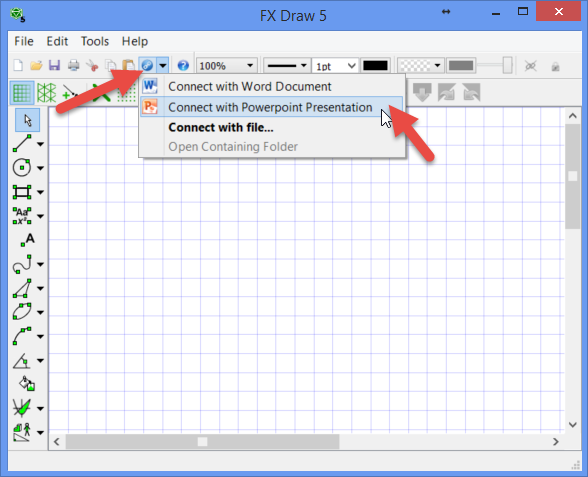
3. In FX Draw, choose PowerPoint from the Connect list.

4. FX Draw will go into Connect mode and will save its diagrams in a file with a file name based on the PowerPoint file name. FX Draw will automatically manage this file – saving as it goes. The file will be stored in the same location as the PowerPoint file with and fxd extension added to the file name. Note the filmstrip at the bottom of the FX Draw page which allows you to select an image from the collection in the file.

5. Draw your diagram and press the green check mark. The image will be pasted into your PowerPoint presentation

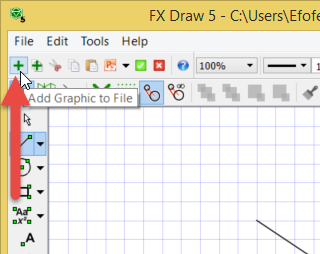
6. To create a new diagram, press the Add Graphic to File button (or add a copy of the current graphic using the next button along)

7. To edit an existing diagram, select it and copy it to the clipboard. Then change focus to FX Draw. FX Draw will compare the graphic on the clipboard to the graphics it has on file and automatically select the best fit. After you have edited, click the green check mark and your graphic will be updated.

At all times, you are really just copying and pasting. The green tick and finding the right diagram in the file are just there to make things quicker. There is nothing to stop you copying and pasting all by yourself.

We have created a video showing the Connection system operating between FX Graph and Word. The principle remains the same however. You can view the video here.

Posted in Draw, Graph, Stat | Tagged , | Leave a comment

PowerPoint Problems

Microsoft PowerPoint has Moved the Goal Posts
We have recently started receiving reports that our products are not integrating correctly with Microsoft PowerPoint for Windows when using our traditional OLE system (double-click to edit).

The symptoms seem somewhat variable depending on the report. Sometimes the graphics are not appearing in PowerPoint when the green check mark is pressed. Sometimes existing graphics are “disappearing” when a PowerPoint file is saved. Obviously, disappearing graphics is a major concern.

The cause of the problem is unclear but we are absolutely certain that it is nothing WE have done – simply because we have done no work on this sort of integration for months. The problem seems to lie with how PowerPoint is handling OLE objects.

If you are using an up-to-date version of PowerPoint, particularly if you are subscribing to Office 365, your copy of PowerPoint is being silently and constantly updated by Microsoft. It appears that one of these updates has broken OLE. Hopefully this will be rectified in the near future but there seems to be nothing that we can do about it.

If you are affected, you can still use our products with PowerPoint using the Connection system. We will put a post up about that in the Support Blog.

Posted in Uncategorized | Tagged | Leave a comment

Spread the Word

Help Us Spread the Word

Efofex has always thrived on the enthusiasm of our users. There are hundreds of teachers out there who love our products and have been happy to tell others about them. We have often seen whole districts suddenly start using Efofex products after one of these evangelists runs a session at a conference.

If you love using Efofex products, we have now made it much easier to be an “evangelist”. You can even earn a little money, or get the satisfaction of seeing some money go to a worthy charity. You will also help Efofex continue to thrive and improve what we offer.

All of our current releases now have a “Tell A Friend” option.

Choosing this option will take you to a special web page, just for you.

Once you have told us who you would like us to pay the finder’s fee to, you can use the customized web link to recommend our products.

You can put the link where ever you like. In an email, on a web page or just write it on a whiteboard. Anyone who uses the link to order one or our products will get a discount of up to 20% (on subscriptions) and you (or a charity) will get the same amount. If that is all too hard, give us a few details and we will send an email on your behalf – although we would much prefer the personal touch.

Please help us spread the word and keep Efofex strong!

Posted in Uncategorized | Tagged , | Leave a comment

New: Check your Details or Resubscribe From The Help Menu

New: Check your Details or Resubscribe From The Help Menu
Lots of users have been downloading the new versions and checking their details or resubscribing from the Help menu.

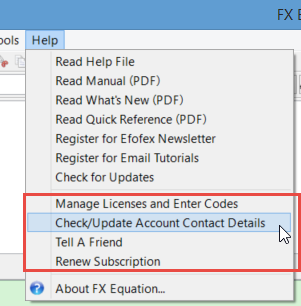
The new technology has been included in all of our products and you have the following options available from the Help menu.

Choosing Check/Update Account Contact Details will take you to a web page displaying your currently recorded details. You can change these and send the changes through to us.

There are a couple of caveats that you need to know:

1. Some users may not be able to check their details. The system works by matching your registered name and some schools (such as the multitude of Sacred Heart Colleges) will not have a unique name in the registry. If this occurs, we will be automatically notified and can issue you with new codes in a unique name. There are a number of other small problems that can occur with registered names that we will work to rectify as they appear. Most users, however, can check and update.

2. Changes are NOT real time. We have decided to not put our full registry online to prevent security problems and we will vet all change requests – uploading changes about once per week.

Don’t forget that you can also organize your resubscription from the same menu, or tell a friend about Efofex products – but we will discuss those in more detail in future messages.

Posted in Uncategorized | Tagged , | Leave a comment

Relocation Complete

We Have Arrived
After a very intense week our relocation is complete. We are not totally settled in but our service should be getting back to normal over the next week. Thank you for your patience.

We did have one major hiccup during the move – although it was totally unrelated to the relocation. Our website provider (Microsoft Azure) decided to have a major meltdown which left us offline for a day. Purely coincidental but very annoying and we apologize if you were inconvenienced in any way.

The nice thing about the relocation is that none of our contact details change.

Efofex Software
PO Box 189 Claremont WA 6910
info
Voicemail: 08 9200 5044
Fax: 08 9200 5674

Posted in Uncategorized | Tagged , | Leave a comment

Coming Soon… Tell A Friend

Coming Soon… Tell A Friend
The more observant of you will have noticed a third new entry on the Help menu – Tell a Friend. This is an exciting new offering that:

  • Allows you to provide a discount to any new customers you introduce. Final details are still being worked out but the discount can be as high as 20% depending on the licenses purchased.
  • Allows you to earn a finder’s fee equivalent to the discount you provide your friend. We will credit your finder’s fee directly to your PayPal account OR you can choose to donate your fee to charity.

This means that you could easily cover the cost of your subscription or even make a little money. You also get to introduce the power of Efofex products to the people who need it.

Using the system is easy. Choose Tell a Friend from the Help menu and you will be taken to a page like this.

The blue link is customized for you and, if your friend uses it, they will get the discount and you get the finder’s fee. If you don’t want to send your own email, we can send one on your behalf.

We know that many of you love our products – you keep telling us. Help us spread the word and earn a little money on the side (or feel good about donating it to charity!)

More news soon.

Posted in Uncategorized | Leave a comment

Coming Soon… Renew from the Software

Coming Soon… Renew From The Software

Another change we are making to address schools “losing” Efofex is that any product that is currently licensed through a subscription will offer the opportunity to renew directly from the software. Choose the Renew Subscription option from the Help menu (as you approach and pass expiry, the software will offer you other opportunities as well) and you will be directed to the renewal page on our website – with all of your details pre-filled. This will be a far more effective system than our current email based system.

Posted in Uncategorized | Leave a comment

Coming Soon… Check and Update Contact Details Online

Coming Soon… Check and Update Contact Details Online
Schools are sometimes chaotic and we always have a number of schools whose subscriptions expire because the nominated contact person has left the school and no one ever gets the reminders. We are doing a number of things to address this. The first thing is that upcoming versions of our products will let you check your contact details and submit an update.

We are still putting the final touches on the system but it will look something like this…

In the Help menu, there are a few new entries.

If you select Check/Update Account Contact Details you will be sent to a web page where you can view the current details recorded in our registry and submit changes that you would like to be made. Hopefully this will mean that fewer schools become “detached”.

Posted in Uncategorized | Leave a comment