Efofex Insiders For More Information!

We have been very busy over the last few months, adding significant new features to our products. Our Efofex Insiders newsletter details all of the finer details of the new options. This week we have already uploaded 5 new articles containing details on using parameters for bivariate data, grouped data, frequency tables and an number of other options.

If you want access to all of the technical changes to the software, our Efofex Insiders Newsletter is the place to be! We will continue to report on more general changes and development themes in our general newsletter.

Posted in Uncategorized | Leave a comment

New Display Commands For FX Equation/Equation Tool

FX Equation has had the box command for many years. It allows you to create empty boxes or put boxes around various parts of your equation.

Cancelling Parts Of Your Equation

FX Equation has also had a “strike-through” system which tried to allow you to “cancel” various parts of an equation. This was always a difficult task programatically but the addition of parameters to our products has made it impossible.

In the latest versions, we have deprecated (still available but not recommended) the strikethough system and replaced it with explicit cancel and strike commands.

cancel(x2) will cancel using a diagonal line.
strike(x2) will cancel with a horizontal line.

For example, if I type…

(cancel((x-2))(x+2))/(strike(x-2))

FX Equation will produce the following.

The new system is far more reliable.

New Underlining Commands

As part of this upgrade we have also added two new underlining commands, ul() and dul(). These underline and double-underline components of your equation.

x2+ul(3x)-dul(4)

By selecting the dul or ul part of the command you can change the colour of the underline. Ideal for marking the “answer”.

ArcUnder Command

FX Equation has had an arc command for a number of years. This allows you to add an arc above a component of your equation. The latest releases add an arcunder command.

Posted in Uncategorized | Leave a comment

Statistics on MultiDocs

We have been working feverishly on expanding the types of mathematics that can be regenerated using MultiDocs. Our recent efforts have added the ability to create most statistical graphs and perform most statistical calculations.

Visit FX Library and type Statistics in as the search term. This will provide you with a small selection of the new features available. So far we have uploaded a bivariate data question, a cumulative frequency question and a question involving stem & leaf plots.

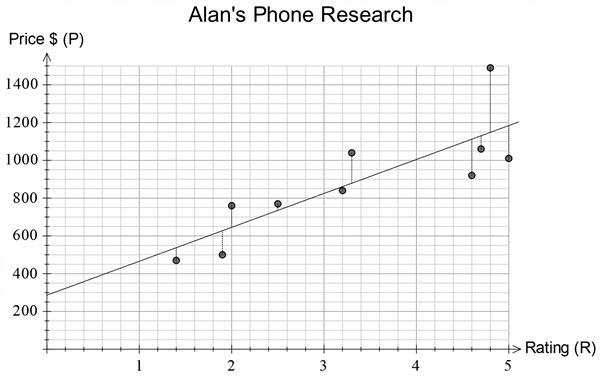
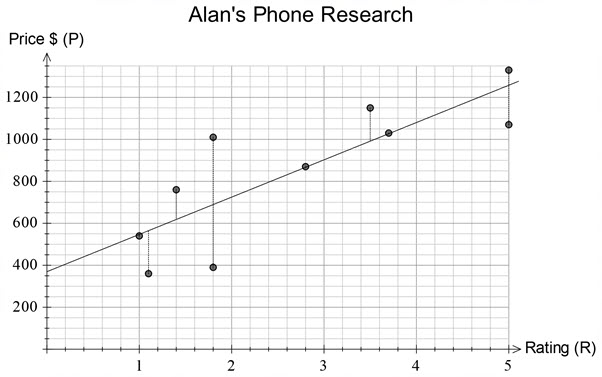
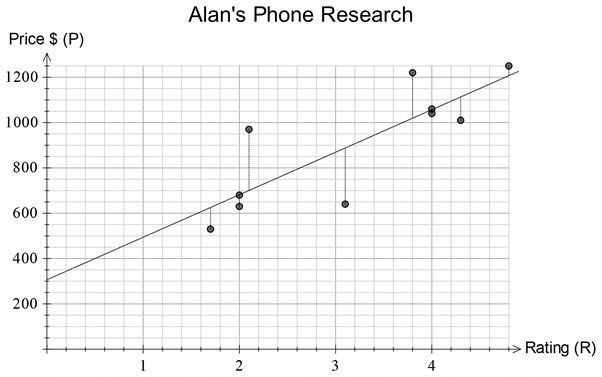
Like all MultiDocs, our examples are regeneratable at the push of a button. Here’s a graph from the bivariate data question – three different versions of the question in seconds!

MultiDocs are the most exciting addition to Efofex since the release of FX Draw. If you haven’t investigated the power of the new system, we strongly recommend that you take a look!

MultiDocs – Powered by Efofex

As always, our Efofex Insider’s Newsletter will keep you up-to-date with the technical side of changes.

Posted in Uncategorized | Leave a comment

New Data Commands for The Inline Calculator

Our introduction of data parameters means that parameters are no longer just 1 number. You often need to work with full list of values.

If we have the following parameter

$p=randnormal(50,10,30)

$p might contain the following data.

52.82, 51.09, 49.33, 47.02, 38.04, 67.23, 55.54, 51.4, … , 37.88, 45.5, 55.23, 49.21, 38.63

The inline calculator can now calculate most summary statistics

{mean($p)} will be replaced with 49.77

{iqr($p)} will be replaced with 10.55

There are a number of commands which produce summary statistics. These are discussed in our online manual.

You also have access to commands like

{sort($p)} which will sort the list in ascending order

{contains($p,50)} which will return true if $p contains the value 50

{count($p,6)} which will return the number of 6’s in $p

Posted in Uncategorized | Leave a comment

Reference Ranges

Efofex parameters have always supported references. These allow you to reference individual values in a parameter.

For example, if you have created a parameter like

$p=shuffle(1,6)

$p might end up being 5, 4, 6, 1, 3, 2

You can reference individual elements of $p using square brackets.

$p[4] = 1
$p[6] = 2

The latest versions allow you to use a reference range.

$p[2,5] = “4, 6, 1, 3”

Reference ranges will automatically be produced with your local separator (in this example, that is a comma).

You can also add your own separator

$p[2,5,+]

will be replaced with “4+6+1+3”

Special Reference Ranges

There are two special reference ranges you can use. The first is the empty reference range.

$p[]

This will list out ALL elements of the set. For the example above, this will produce

“5, 4, 6, 1, 3, 2”

The second special reference range is an elided reference. For this example we will use

$q=range(1,100)

If you listed out this full set, the result would be too long for one line. Instead you can use this notation.

$q[…]

which will automatically produce an elided list.

1, 2, 3, 4, 5, 6, 7, 8 … 96, 97, 98, 99, 100

You can also add your own separator

$q[…,+]

1+2+3+4+5+6+7+8+ … +96+97+98+99+100

Ideal for sequences and series questions!

Posted in Uncategorized | Leave a comment

New Efofex Parameter Types

We have been working frenetically on Efofex parameters and the inline calculator over the last few months and have created a number of new, powerful parameters and commands. This article discusses the new parameter types.

Shuffle Parameters

A shuttle parameter allows you to quickly create a shuffled list. For example,

$p=shuffle(1,6)

will automatically create a shuffled list of the numbers from 1 to 6. This means that $p might be

3, 4, 1, 6, 5, 2 or 4, 5, 1, 2, 6, 3 or any other arrangement.

You will normally access shuffled lists using references.

$p[1] or $p[4] for example.

Coprimes Parameters

A coprimes parameter produces a randomly selected set of (up to 10) coprime numbers from the indicated range.

$p = coprimes(1,50)

This parameter might produce

34, 35, 11, 31… or 4, 21, 19, 43…

This allows you to quickly create new sets of coprime numbers (numbers which share no common factors)

Data Parameters

A data parameter is really just a list of values (a bit like a list parameter). The difference is that data parameters are designed to be worked on as a data set. For example, you can find the mean of a data parameter using a simple calculator command.

A simple data parameter looks just like a list parameter.

$p=data(1,4,6,8,2,4,7,2)

but you will not often write out your own set of data. A more useful way to get a data set is to use one of our random number parameters.

Random Number Parameters

Our random number parameters allow you to quickly create data parameters using random numbers. The two you will use most often are:

$p=randnormal(50,10,30,2)

Which will produce 30 normally distributed random numbers from a population with a mean of 50 and a standard deviation of 10 (rounded to 2 decimal places).

or

$p=randbetween(1,6,30)

Which will produce 30 uniformly distributed random numbers from 1 to 6 (equivalent to rolling a die 30 times)

There are a number of other distributions you can use. These are mentioned in our online help.

Posted in Uncategorized | Leave a comment

$$ For Your Local Currency

The latest versions of our products will replace $$ with your local currency symbol as determined by your computer settings.

€, £, ¥ and even ₮

Even better, if you send your document to a user in a different country, your equation will be rendered using their currency symbol automatically.

Posted in Uncategorized | Leave a comment

Efofex Toolbars Return To PowerPoint

Our new MultiDocs system has allowed us to rebuild support for PowerPoint. The latest versions of our products can now insert toolbars into your copy of PowerPoint on both Windows AND Mac.

PowerPoint on Windows
PowerPoint on Mac

Even better, the new toolbars provide access to all of the MultiDoc features. You can create self-modifying mathematical PowerPoint presentations or just use our products more efficiently.

Adding the toolbars to PowerPoint is more complicated than Word. In the Help menu of any of our products, go to Manage Office Integration.

Extra Steps Required

This button will provide all of the details to get you started.

Posted in Uncategorized | Leave a comment

MultiDocs/Parameters Grow In Power

The last few months have seen continued frenetic development in our MultiDocs system. The ability to create self-modifying mathematical documents (think one test with multiple versions at the push of a button) is the most powerful and exciting development from Efofex since FX Draw.

In recent weeks we have added new classes of parameters that allow you to create data sets and perform calculations on the sets. You could create some random data; draw a graph; calculate some summary statistics and write a comprehensive statistics question. Once complete, you push a button and get a totally new version of your question.

We have also release a selection of new videos to help you get your head around the new ideas. The nice thing about MultiDocs is that you use them to create your own documents; you can use MultiDocs written by others (see our FX Library) or just ignore them completely and keep using our products as you always have.

Take a look at our MultiDocs introductory materials now.

MultiDocs – Powered by Efofex

Full details of the powerful new features are available in our more technical, Efofex Insiders blog.

Posted in Uncategorized | Leave a comment

The New IF Command

Basic Usage

The new If command in the inline calculator allows you to create extremely complicated expressions.

The If command has the following format

if(condition to be satisfied, value if true, value if false)

For example, an if statement might look like this

{if($n>0,100,-20)}

When this command is run, the inline calculator will look at the value of the $n parameter. If the value is greater than 0, this statement will be replaced by 100. If the value is less than or equal to 0, the statement will be replaced by -20.

If commands will often include multiple parameters.

{if($n>0,$p,$q)}

With this command the inline calculator will return the value of either $p or $q, depending on the value of $n.

Conditions

A condition is a Boolean statement that returns true or false. Conditions often include inequalities:

  • $s<4
  • $n>=6
  • $q=9
  • $t<>7 ($t is not equal to 7)

These are fairly simple conditions. You can combine these using the And, Or and Not commands as well as some of the more specialized Boolean commands to produce extremely complicated conditions.

Numbers Or Text?

You can use the inline calculator to insert numbers or text into your equation. If you want to insert text into your equation, you must wrap the text in quotes.

For example:

{if($d=0,”Cannot divide by zero”,$n/$d)}

This command will look at the value of $d. If the value is 0, the inline calculator will return the text Cannot divide by zero. If $d is not zero, the calculator will divide $n by $d and return the result.

Nested If Commands

If commands can be nested.

{if($n=0,”n is zero”,if($n<0,”n is negative”,”n is positive”))}

This command might take a little decoding…

If $n is zero, the command will return n is zero. If $n is not zero, the calculator will return the second result – which in this case is another if command. The calculator will execute the nested if command and return the appropriate response. There are no technical limits to the amount of nesting but the expressions can quickly become unwieldy. Often a better way to nest if commands is to assign commands to parameters. For example, if you assigned

$p=if($n<0,”n is negative”,”n is positive”)

You could then write the nested if command as

{if($n=0,”n is zero”,$p)}

Boolean Conditions

We have added a number of commands to help you write Boolean conditions. Details can be found in the online documentation.

  • And
  • Or
  • Xor
  • Nor
  • Not
  • IsEven
  • IsOdd
  • IsInteger
  • IsComposite
  • IsPrime
  • IsFactor
  • IsNatural
  • IsCube
  • IsSquare
Posted in Uncategorized | Leave a comment