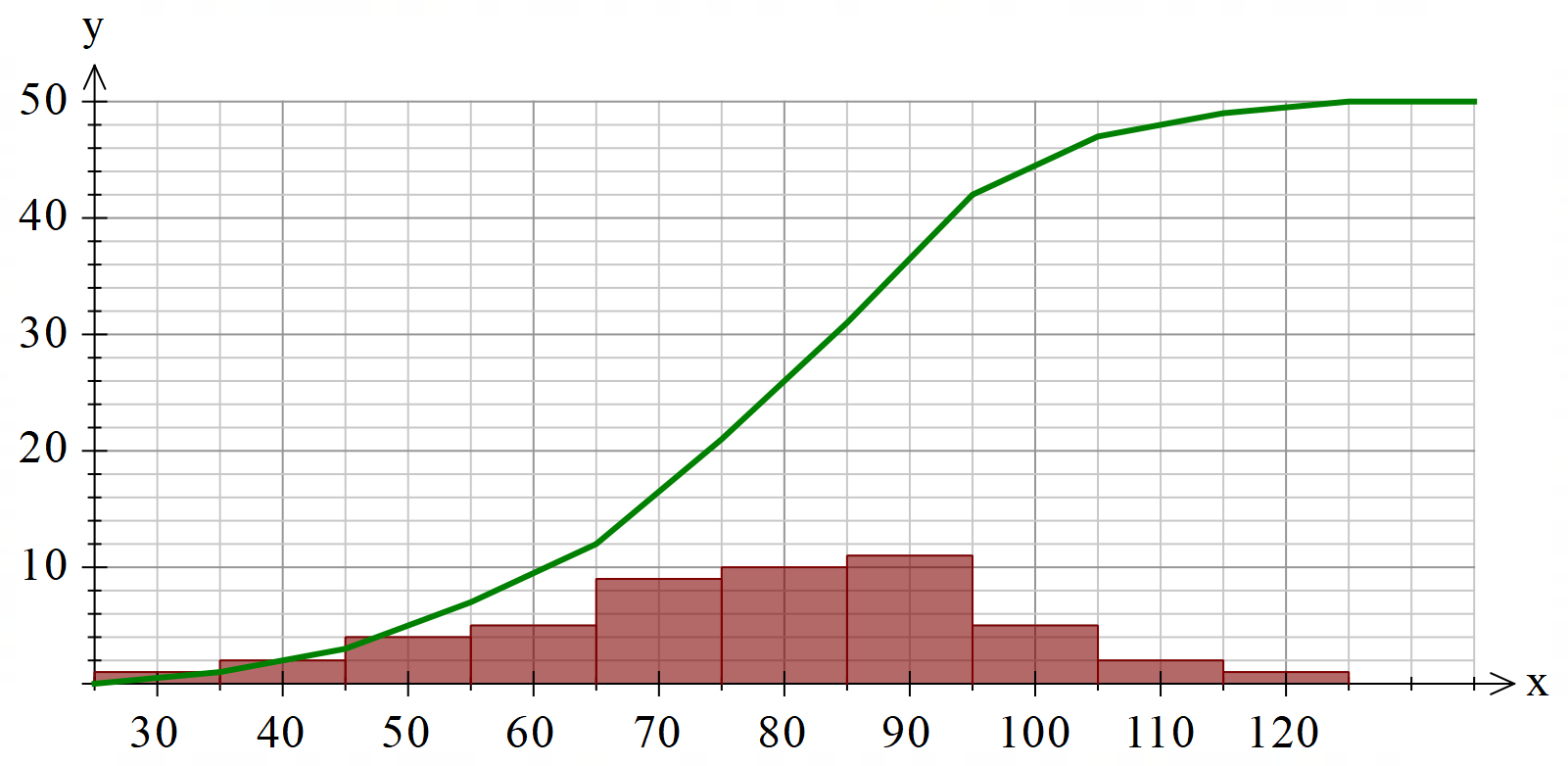
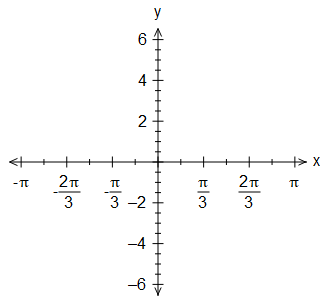
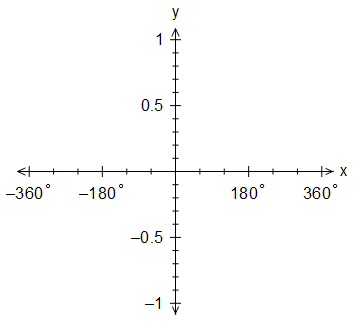
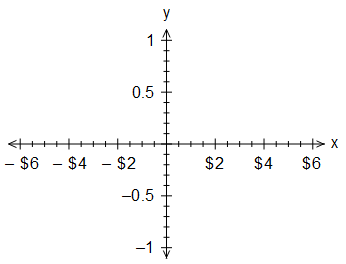
Grouped data graphs (histograms, frequency polygons and cumulative frequency graphs) now have the option of placing the class centres in the axes. This is particularly useful for NSW teachers who seem to prefer this option.
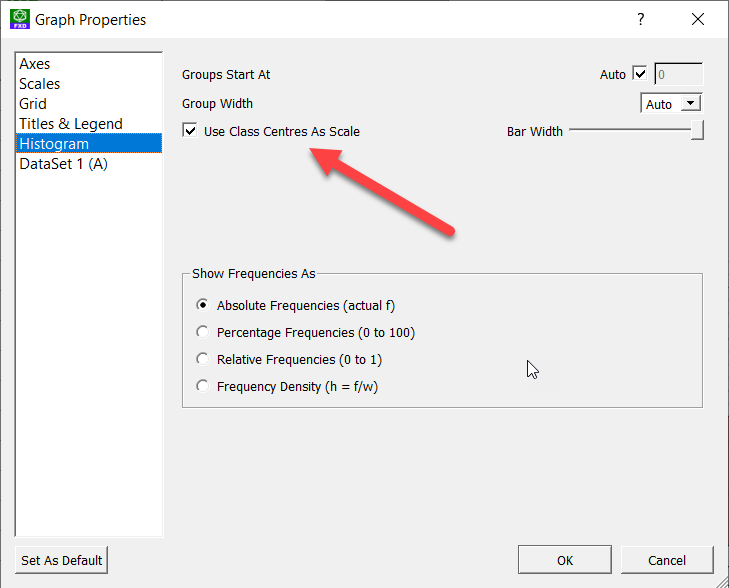
You can turn on class centre scales in the options for the affected graph types.
Long term users of our products will know that we previously had a version of this mode of graphing (it was called Use Alternative Axes). The new system is massively improved and allows you to combine cumulative frequency curves with other graphs.
This investigation looks at calculating the heights and depths of inaccessible objects.
The validation section of the investigation has been parametized to allow multiple versions to be produced.
FX Library MultiDocs provide you with prewritten materials that you can use as-is or you can use the MultiDocs features to generate new versions at will. They also provide exemplars on how to create your own MultiDocs. We recommend that you keep an eye on FX Library by pushing the Library button on our new Word toolbar.
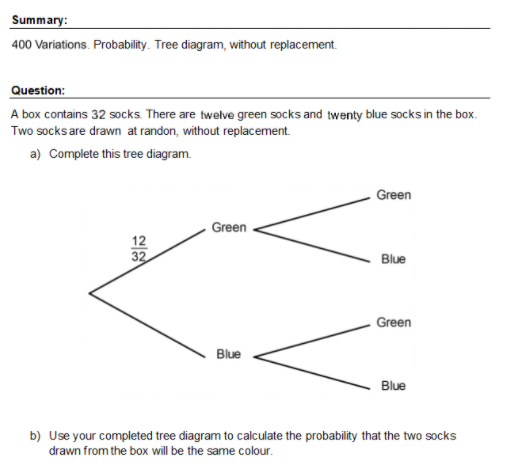
We recently uploaded some new probability questions to FX Library, and the development of one of them is indicative of the power of Efofex Parameters.
It all started when we developed a simple tree diagram question about different coloured socks in a box. It is exactly the standard sort of question that is perfect for MultiDocs as a push of a button produces one of the 400 available variations.
You can find this document in FX Library or through this direct link.
Something Interesting
A basic rule of developing MultiDocs is “Regenerate, Regenerate, Regenerate”. Regenerating quickly shows up flaws in the question design and is a crucial tool to developing these questions. As we regenerated this question, we noticed something unexpected – the answers were much more likely to be one side of 0.5 than the other. We have often found this while developing MultiDocs – the process of designing questions that can self modify can lead to a much deeper understanding of the topics.
In this case, that deeper understanding lead to the development of an interesting investigative activity which starts like this.
There is actually quite a lot of mathematics going on behind this with a few interesting results!
You can find this activity in FX Library or using this direct link. As with all FX Library materials, subscribers can use the documents in their teaching with almost no copyright concerns.
FX Library is a growing library of materials that you can use directly in your teaching or as a source of exemplars for your own questions.
MultiDocs are a new, incredibly powerful way to use Efofex products but they can be challenging to write. FX Library is a collection of pre-written MultiDocs that you can use in two ways.
As a subscriber, you can download documents from the library and use them immediately, either as standalone documents or copying questions from the documents into your own materials.
You can also use FX Library documents as exemplars on how to write questions with Efofex Parameters.
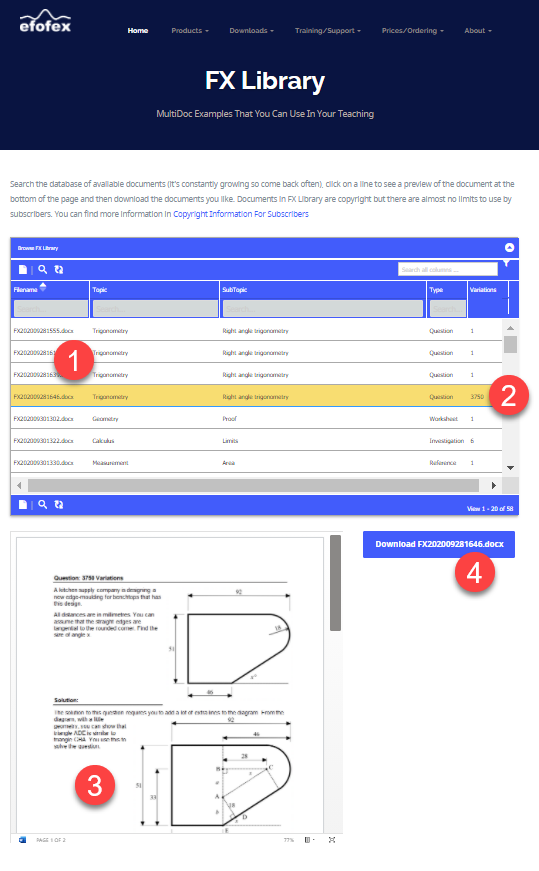
When you visit FX Library, you will see the following:
The FX Library Screen
Search the database of documents using key words.
Take note of the number of variations available for that document. These range from 1 (for documents which do not include parameters) up to 100 000. Actually, many documents have literally billions of variations available – we just set the maximum at 100 000.
When you select a line in the database, the page will load the document into a viewing window.
If you are happy with the document, download it to your computer and start using it.
Accessing FX Library
The easiest way to access FX Library is from the Word toolbar. This will take you directly to the page on our site. You can also visit it here.
The FX Library Button
Copyright?
Subscribers can use the materials in FX Library with almost no restrictions. You can find more information here.
The Future
At the moment, FX Library contains about 60 documents. These make great exemplars so you can see just how to use Efofex parameters. Over time, the number of documents will expand greatly and our goal is to make FX Library a comprehensive source of mathematical materials that you can use to create your own, incredibly versatile MultiDocs
In recent months, Efofex has introduced two powerful new technologies.
Our New Toolbar
Cross-platform, faster, more powerful… what’s not to like about the new toolbar. Even if you want to keep using our products as you always have, the new toolbar makes this faster, more reliable and easier to share.
You can find more information on installing and using the new toolbar here.
Efofex Parameters
Parameters are a powerful addition to Efofex products that allow you to create equations and graphics that can modify themselves in a mathematically consistent way. This allows you to create objects that can have multiple versions.
Using objects based on parameters is easy, particularly from within Word (using our new toolbars). You can find more information on this here.
Creating objects which use parameters is more of a challenge. We have created comprehensive (and constantly expanding) documentation to help you with this IF YOU CHOOSE TO CREATE. You can find this information here.
MultiDocs
These two new technologies combine to produce MultiDocs. So what are MultiDocs?
MultiDocs Are Just Word Documents
The only difference is that any included Efofex drawings and equations can be be made to be self-modifying. You can write questions that “change the numbers” at a push of a button. You write ONE question (and even a solution) but have access to multiple variations. In fact it is fairly easy to create documents that can transform themselves in billions of different ways!
One Document. Multiple Versions. That’s a MultiDoc.
Incredibly Flexible
MultiDoc creators have access to all of the power of FX Draw and FX Equation. Just about every aspect of diagrams and equations can be made modifiable. The options are almost unlimited.
Alternatively, you can just keep using Efofex products to create mathematical documents as you always have. You don’t HAVE to learn anything unless you want to.
All The Power Of Word
MultiDocs Are Just Word Documents. All the power and flexibility of Word can be applied to MultiDocs. You get to use a product you know well in a new, more powerful way.
Accessible For Everyone
FX Draw and FX Equation are specialized tools that do a complicated job. Many teachers can not find the time to learn how to use them to their full potential. MultiDocs put that power into a format that is accessible to everyone. You can use a MultiDoc to create a new version of a test, worksheet or exam without knowing how to use our specialized products.
So What Next?
To use MultiDocs, you need to access and install the latest versions. You can find more information here.
The new toolbar allows you to manage, regenerate and create MultiDocs which is a powerful new addition to Efofex’s toolset – but what if you just want to add or edit a simple graphic like you always have?
Our latest downloads include a refreshed version of the Word toolbar with some new features added.
The Latest Toolbar
As a reminder, this is our new Word integration toolbar that is now available on Windows AND Mac machines. It brings all of the power and convenience of the old Classic Mode systems to a new group of users as well as massively increasing the usefulness of our products in Word “multidocs”.
There are a number of new features that have been implemented.
Buttons on the toolbar now respond to the currently open products as well as what is selected. The Regenerate button (for example) only becomes active if the currently selected object is a regeneratable object. Information on the basic usage of the toolbar can be found here.
The Reparametize button makes it easier to use multiple copies of a question in a document. More information on reparametization can be found here.
We have added a link to the documentation for the new toolbar, Efofex parameters and Multidocs to the toolbar.
Finally, we have added a direct link to FX Library which is our collection of prewritten MultiDocs which you can use as examples on how to use Efofex parameters – or just download and use immediately with your students.
Should I Change?
The new toolbar makes Efofex integration into Word incredibly powerful and productive. We recommend that long-term users of our products upgrade at their earliest convenience. There is a little bit to learn, but we have tried to make the change as easy as possible. Visit our dedicated page for long-term Windows users here.
While very few schools still want to pay us by check/cheque there are still some, usually in the USA and Canada. Banks have tried very hard to discourage their use, particularly internationally, by massively raising fees and delaying remittances. We have kept the option alive for some schools for which it was a requirement. This became much more difficult when COVID19 arrived.
Recently our bank has told us that they will no longer accept foreign currency checks/cheques. We are left with no choice but to follow their lead and have recently removed the option from our website.
Schools can now remit using credit cards, PayPal or direct deposit to our Australian bank account. In some circumstances we can also offer direct deposit to a local account (particularly in the US). This is negotiated on a case-by-case basis and there is no option to deposit checks to the local account.
In summary, we can no longer accept checks/cheques as payment.













 Efofex News