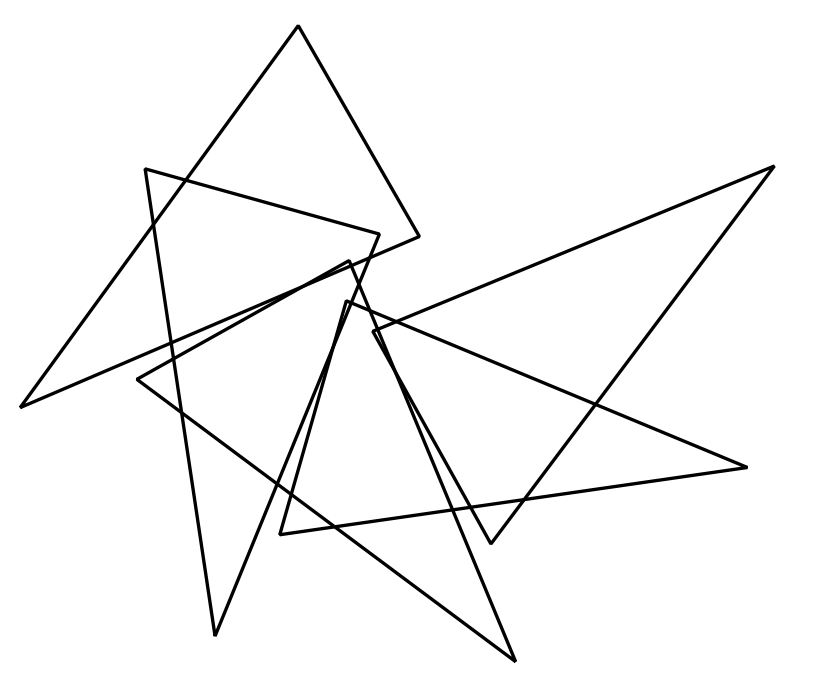
FX Draw allows you to rotate selected figures by moving the rotate handle.
The latest version of FX Draw allows you to create rotated copies of a figure. To access this feature RIGHT-CLICK on the rotate handle.
Enter the number of copies you want to create and how much to rotate between copies. Then press OK. FX Draw will create the copies, rotate them (centred around the centre of rotation you set) and add them to your canvas.
The latest release of FX Draw adds a movable centre of rotation/scaling.
Previous versions of FX Draw could rotate and scale figures but used a fixed centre of rotation/scaling. The latest release allows you to move the centre to suit your needs.
We have added a new feature to FX Stat and the statistics tool in FX Draw that makes it easier to work with bivariate data.
If you select two columns of data in FX Stat and right click, you will be offered a new option: Copy As Points
If you select Copy as Points, the data will be placed onto your clipboard as a list of ordered pairs (points) that can then be pasted into Word or any other container application.
As noted in our news article from November 2019, Mac OSX Catalina requires that downloaded programs are “notarised” by Apple before they can be run without security notifications. Efofex now provides notarised applications in our downloads so our products should be easily accessed on the new MacOS. Mac users should download the new versions as soon as practical.
We believe that we have managed to organise notarisation our products without breaking compatibility for users using older Macs.
If you are one of the teachers being impacted by the OneNote issue we discussed in May, we have some good news for you from Microsoft.
After a lot of pressure from customers who prefer the OneNote desktop interface, Microsoft have decided to continue developing and supporting the desktop version of OneNote.
This means that you will very quickly be able to approach your IT staff and ask that the desktop version of OneNote be reinstalled on your computer.
While we have still not been able to get Microsoft to address the pasting issue in the app version of OneNote (despite many approaches), this news will permit teachers to go back to the version that they overwhelmingly prefer (and not just because of our products!).
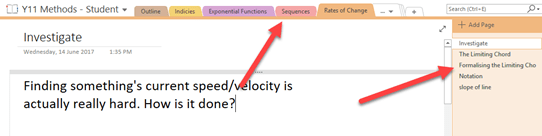
Just in case you do not know the difference between the two versions, the desktop version has tabs across the top and a list of pages in the current tab down the side.
Windows Desktop Version of OneNote
The app version, which is very similar to the online, web-based version, has the “tabs” and pages on the left.
Windows App Version of OneNote
Microsoft has tried to standardize on the app version but has experienced significant push-back from customers who dislike the new user interface for lots of varied reasons. This blog post means that Microsoft is listening to customers!
The latest version of Mac OSX, Catalina, introduces a new round of security settings which are causing issues for our products. Downloaded apps now need to be officially “notarized” by Apple before they can run on your computer.
At the moment our products are not notarized, although they are digitally signed to ensure that they have come from a known Apple certified developer.
We are currently working on ways of getting our products notarized but are experiencing some difficulties as we deliberately produce our software using some older technologies. We do this to allow teachers to use our products on old versions of Mac OSX. At the moment we are caught in a bind between supporting teachers using old computers (of which there are many) and supporting teachers using the latest Macs (of which there are comparatively few).
You can, if you wish, use our current versions on Catalina but it requires some extra steps to authorize the products, as well as ignoring some overly-dramatic messages from Apple. The full (Apple produced) instructions to do this are here.
We have just uploaded new versions of all of our products which have much better SVG support. SVG (Scalable Vector Graphics) files are a vector based graphics file which allows for high resolution output regardless of how far you zoom in.
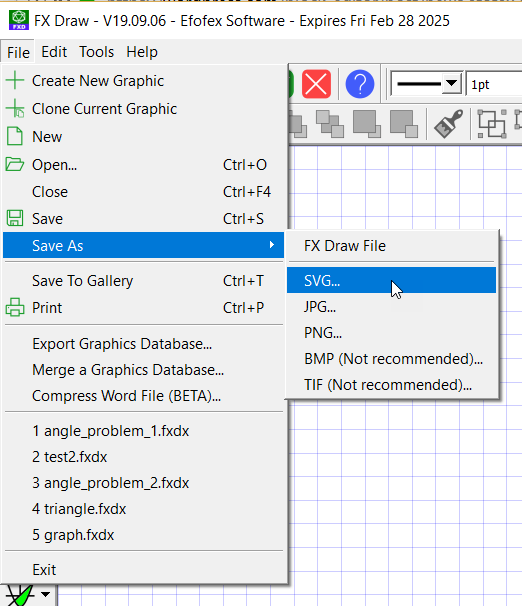
While our products have long been able to save files in SVG format, they have not previously been able to crop the page to your graphic. This meant that SVG files were often a small graphic at the top left of a blank page. The latest versions of our products fix this issue and now provide SVG files that are cropped to your graphic. Just choose File Save As SVG from the menus.
Windows Users Get More
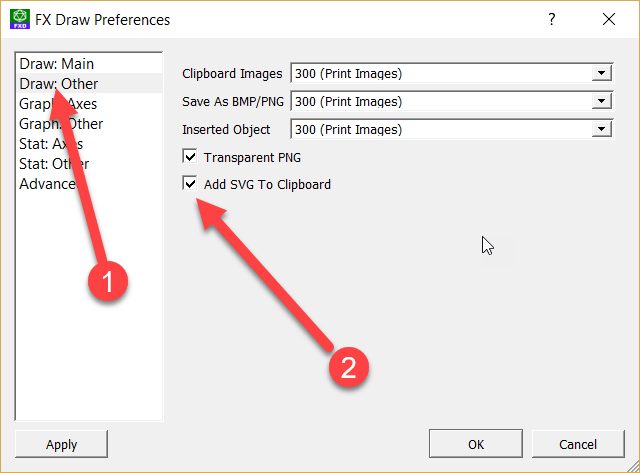
If you use Windows and you do not normally send files to Mac users, you can turn on a new option that allows you to paste SVG files directly in to your Word documents.
Go to the Tools Menu and choose Preferences. Turn on “Add SVG to Clipboard”. Once this is done, whenever you click on the green check mark, the product will add an SVG version of the graphic to the clipboard. Word will use this preferentially.
There are two reasons to use SVG graphics.
Higher quality output
Transparent graphics
Note that SVG graphics will NOT be used if you are using the toolbar to insert a graphic, you will only get SVG graphics if you use our newer, copy and paste option.
Unfortunately, the Mac version of Word does not seem to “play nice” with SVG graphics so we have not turned this feature on by default. If, however, you tend to exclusively use Windows computers and our new, copy and paste modern-mode system, SVG graphics will produce a noticeable improvement to your graphics.
We have uploaded new versions of our training videos for FX Draw and our Equation, Function Graphing and Statistical Graphing tools. The new videos replace our old email tutorials and show you how to use all of the latest features.
One new feature of the training videos is the table of contents that we have added to the videos.
This allows you to quickly find the topics you are interested in.
In the July 5 2019 versions of FX Draw and FX Stat, we have added the ability to add a normal distribution curve and a cumulative normal distribution curve for a data set.
Two new graph types
The new graph types draw an idealized normal/normal cumulative curve for a selected dataset using the dataset’s calculated mean and standard deviation. They allow you to demonstrate how closely your data fits a normal distribution.
The cumulative normal distribution curve can be combined with the calculated cumulative frequency curve (as well as a cumulative histogram) to clearly demonstrate differences.
As part of this upgrade we have also added some smoothing to our cumulative frequency curves – particularly when produce from grouped data.
Download the latest FXDrawTools pack to access the new features.
We recently received a request to allow FX Chem to create gas evolution arrows (↑) and precipitation arrows (↓). We have added this capability by using the \ character for precipitation (think of it as sliding downhill) and the / character for gas evolution.
Examples Using The New Arrows
The new feature is available in versions of FX Chem produced after June 26 2019







 Efofex News