MultiDocs is an amazing new technology but there is a lot of new information to take in. Up until now, we have focused on providing that information as short videos – but we know that lots of teachers find it hard to find the time to watch videos.
Today we are releasing a comprehensive MultiDocs Primer document as a PDF which you can view or print. It is structured to allow you to “tap-out” when you have had enough. You can just learn the basics or you can investigate the full power of the parameter system and inline calculator.
The recent release of Sonoma has lead to an annoying, security related issue.
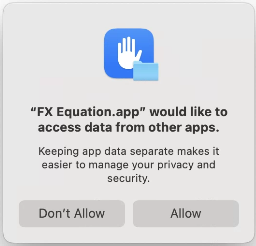
MacOS is (rightfully) very security and privacy focussed. Whenever we release a new version of a product, users will be asked this question the first time they run the product.
Users will see this with many products and they are used to answering the question – once.
Another feature that MacOS uses for security is “sandboxed” data. This means that products (like Word) can create a data storage location that only it can access. As we need to interact with Word at quite a deep level, we need access to this location. This is something that the user will also be asked to allow.
The annoying aspect of Sonoma is that it asks this question every time the app is opened and it does not remember your previous response.
This change does not impact the use of our products – if you allow the access, they can do their job. We just wish that you were not asked every time.
Important Notes:
This change affects a lot of software products, not just us.
There is nothing we can do to mitigate this change. We are completely at the mercy of Apple.
The issue has been reported to Apple by many developers and we anticipate that it will be addressed in future releases of MacOS. Having said that, Apple may just choose to keep it.
The change does not impact on the effective use of our products, it is just annoying.
We will keep you informed of any changes in the future.
We just presented a very successful session at the MANSW 2023 conference in Wollongong. Over 150 people attended and the response was excellent with many excited people leaving the room.
For the first time, we recorded one of our live sessions and have made the session available on YouTube.
The video is just over 40 minutes long and gives you a fantastic overview of what MultiDocs are and how they can be used in your school.
We are heading out on the conference trail to round out the year, making sure that as many people as possible know about our new MultiDocs technology.
Efofex will be presenting sessions at the MANSW, NZAMT, MAWA and MAV conferences in Australia and New Zealand. We will also be exhibiting at MANSW, NZAMT and MAV. If you are attending any of these conferences, make sure that you come along, say hello and take a quick look at MultiDocs!
Managing fonts in Efofex equations can be a little tricky. This is due to how our products decide what font to use for your equations:
Most of the time, the font is whatever you currently have selected in the editor (like most editors).
Our AutoQuate technology allows you to just “type” and have our products automatically work out which bits are normal text and which bits are equations. The equations are then, normally, formatted in the currently selected font.
Our products understand that you will often want equations to be formatted differently to normal text. You might, for example, use Arial for your normal text but Times New Roman for equations. They also understand that you will not want to manually select each equation and change the formatting!
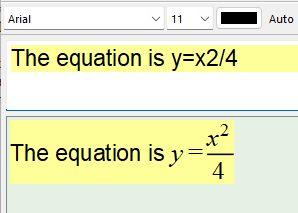
All this means that our products can automatically do things like this.
Note that all of the text has been entered as Arial 11pt but the equation part of what we have typed has automatically been rendered in Times New Roman.
Most people set up their copy of FX Equation and FX Draw to reflect their preferences but things start getting tricky when you want to change the font settings. Enter Font Styles!
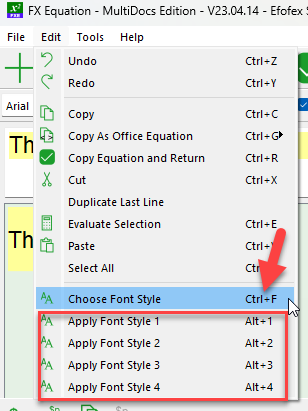
If FX Equation, you can select a font style for the whole equation by going to the Edit menu.
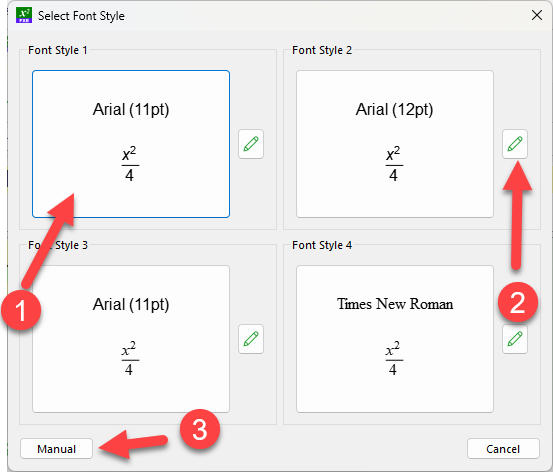
Here you can choose a font style, or apply one of your four, standard font styles. If we select Choose Font Style we will see this.
Here we can (1) select an existing font style, (2) edit one of our standard font styles or (3) create a manual font style for just this equation. If we choose Manual, we can define a font style.
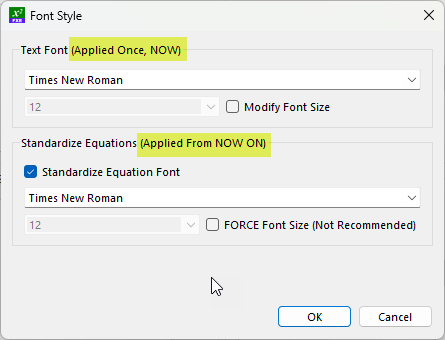
Here we can define a text font which will be applied to all of the text in our equation. We can optionally also set the size of the text font. Note that this new text font is applied to all of the text ONCE – RIGHT NOW. This means that you can optionally go back and select part of the text and change its font.
The second thing we can do is choose to standardize the font for equations (including forcing the size of the equation font). This setting is different because it is defining a standard that will be applied from NOW ON – overriding any text font settings you might have.
Font styles operate in much the same way in FX Draw but are only applied to selected objects.
Font styles allow you to quickly change the fonts in an equation or drawing and are worth experimenting with!
While FX Library materials are your best source of questions and exemplars, our choice of fonts might not suit your needs. All FX Library materials are written with Arial 11pt used for text and equations. The latest version of MultiDocs allows you to select your own fonts.
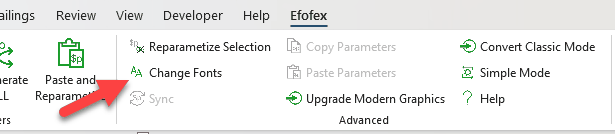
The Expert version of the MultiDocs toolbar has a new option.
The Change Fonts option allows you to change the normal text and equation font for ALL Efofex objects in your MultiDoc. When you select the option you will see a Font Style selection window.
Here you can:
Select one of your standard font styles
Or edit one of your font styles.
Or create a specific font style manually.
You can also select if the new font style is applied to FX Equation equations and/or FX Draw drawings.
This option can take some time to work through a big document. Please note that the option ONLY affects the Efofex objects in your document. If you want to change the font of normal Word text, you will need to select and change that yourself.
Current versions of our products no longer upload copies of your graphics to our servers for backup. This should have no impact on your use of Efofex products. If you mostly use our products in Microsoft Word, you can safely ignore the rest of this post.
For the last decade, our products have been backing up your graphics to our servers (if possible). This was done for two reasons:
It provided a backup of your work.
It made it easier to use our products in a cross-platform way as it allowed for easier movement of graphics between Windows and Mac machines.
Over the last few years, this feature has become significantly less valuable for two reasons:
If you are using MultiDocs or Classic Mode in Word, your data is now stored within the document and does not require “backing up”.
School security policies have prevented the system from operating at all in many school situations.
As the feature is no longer central to our products, and was causing some issues in school situations, we have now decided to turn it off by default. For the vast majority of our users, this will have NO IMPACT on their use of our products and you are unlikely to even notice the change.
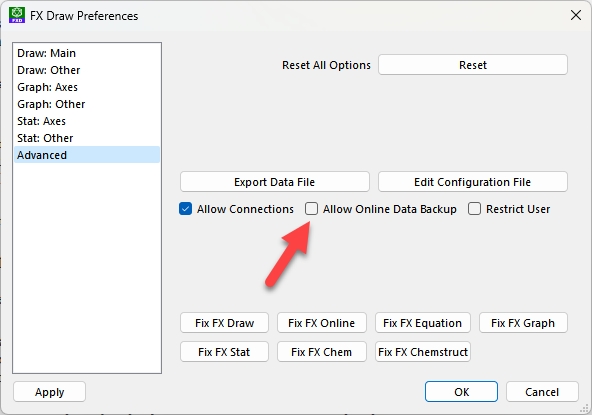
If your workflow still requires you to use the online backups, you can turn it on by choosing Preferences from the Tools menu and going to the Advanced tab.
Place a check mark in Allow Online Data Backup and the system will operate as it has in the past.
A high level root certificate has recently been revoked on Windows machines. This is an old certificate, so it does NOT affect any recent versions, but downloads of some old versions (specifically FX Draw 5) may not work on current computers. Efofex has no way of rectifying this issue as it is due to certificate from a certificating authority.
If you are a current subscriber, you can ignore this issue. Just make that you are using a reasonably up-to-date version. This issue only affects downloads which were released approximately 10 years ago.
If you still use one of the old, affected versions of our products (especially FX Draw 5), you may be forced to upgrade to a newer version.





 Efofex News